Host Guide: Printing & Badge Management
Set up automated badge printing for your events, from organization-level configuration to live check-in execution.
This guide will walk you through setting up automated badge printing for your events, from the initial organization-level configuration to live check-in execution.
Before you can print badges at an event, you must connect your organization to PrintNode and define your global badge templates.
test
Prerequisites
Make sure you have the correct driver for your printer installed. e.g. for
Brother QL820 NWB: Download here:
https://support.brother.com/g/b/downloadtop.aspx?c=de&lang=de&prod=lpql820nwbeuk
This is essential for PrintNode to gather the available paper sizes and capabilities.
1. Connect to PrintNode
PrintNode doesn’t store any data. The first month is free of cost, unlimited usage. The free plan gives you 50 prints a month. The 9$/month plan gives you 5000 prints and 3 connected computers (you can connect >1 printers per computer)
Create an account for PrintNode here https://api.printnode.com/app/login
After confirming your email, create an API key here: https://api.printnode.com/app/apikeys
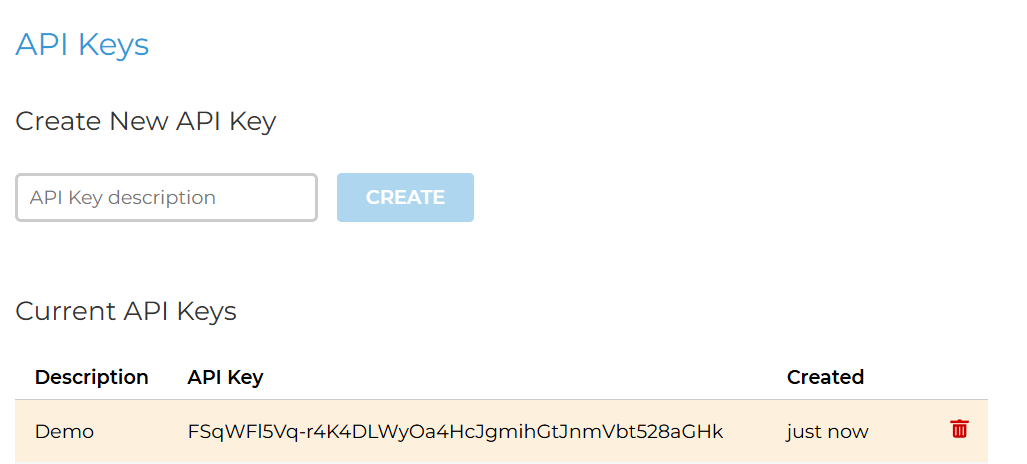
create the api key Download the PrintNode client for the computer connected to your printer:
Open the client app, log in, and check the box next to your preferred printers. All selected printers will show up on FairUp. You may find the app in the system tray.

Navigate to your Host Org > Printing. Enter your API Key. This allows FairUp to communicate with your local printers. You are now ready to start designing your badge.
2. Designing Badge Templates
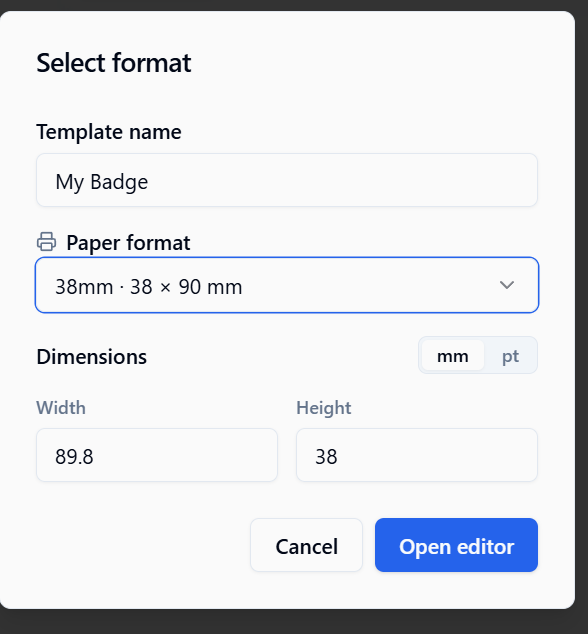
Select Format. When creating a badge, it is necessary to specify the dimensions. You can either select an available paper size (from printers that are connected and online) or specify custom dimensions.
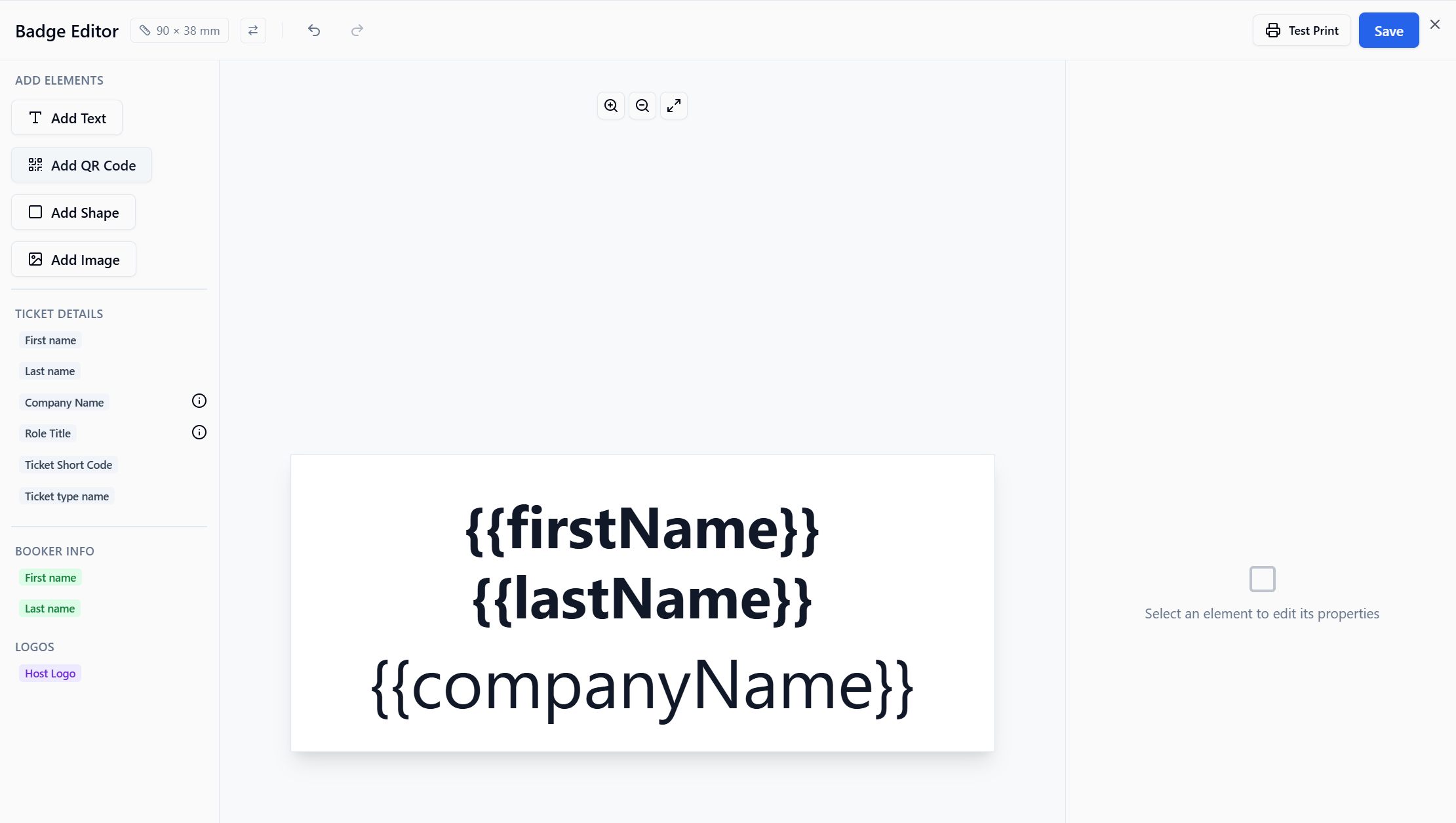
Design your Badge by inserting placeholders, texts, images, logos, shapes or qr codes. If you navigate to an event you can also create badges for that specific instance. There you have access to event specific questions, or target group related fields.
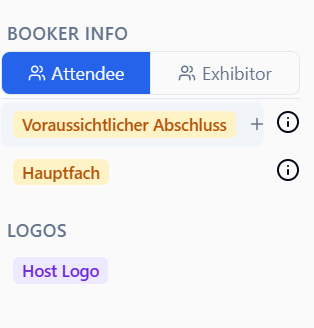
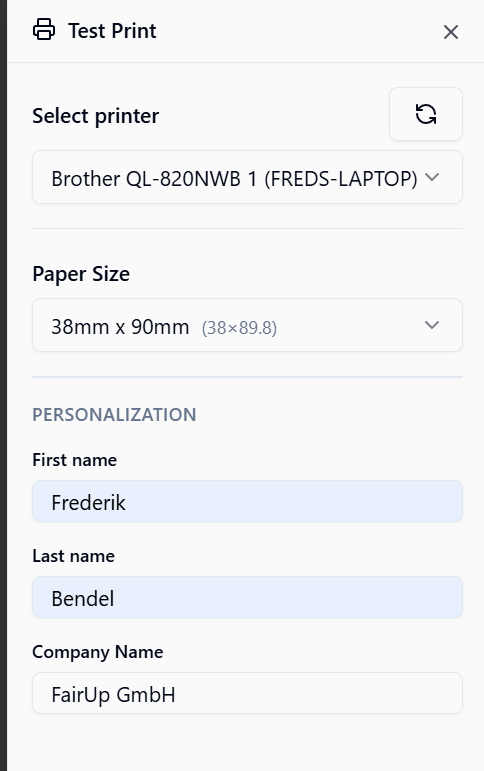
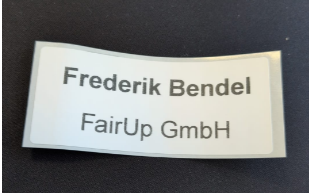
event specific (custom) fields Test the badge print by clicking on test on the top bar. Insert dummy data for your custom fields.
3. Check-In Configuration
At the venue, you will use the Check-In interface to manage attendee arrival and print badges.
Click the Settings (Sliders) icon in the top right of the Check-In header.
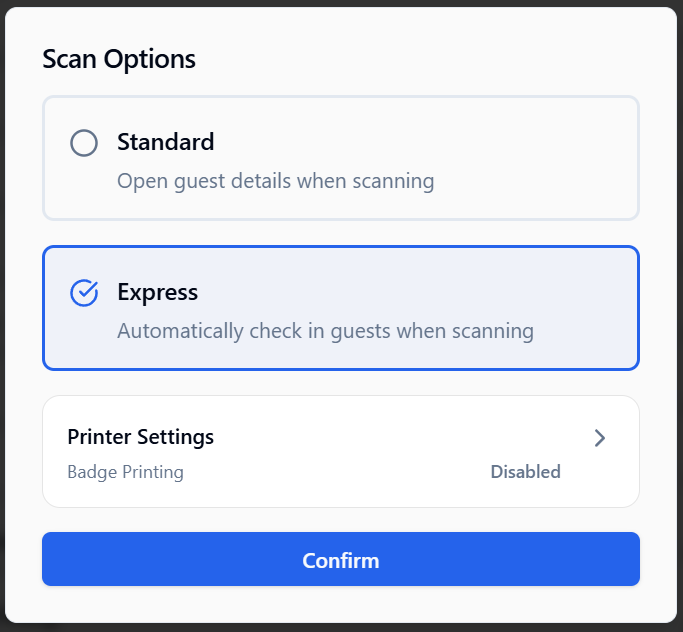
Standard: Opens guest details upon scan (best for manual verification).
Express: Automatically checks in the guest and prints the badge immediately (best for fast throughput).
Open Printer Settings
Toggle Badge Printing On
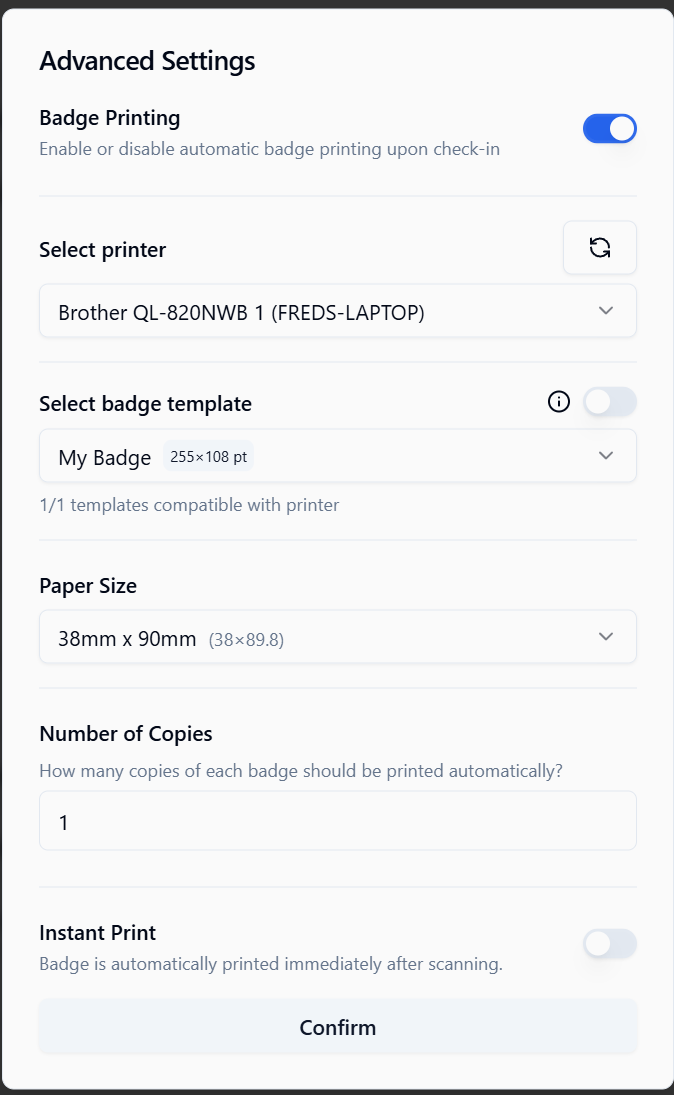
Select your local PrintNode Printer.
Select the template and correct paper format.
If necessary, you can select different templates for different Profile Types (e.g. Attendee / Exhibitor)
Select the number of copies per print operation. (e.g. double-sided badge)
Activate Instant Print (Express mode only).
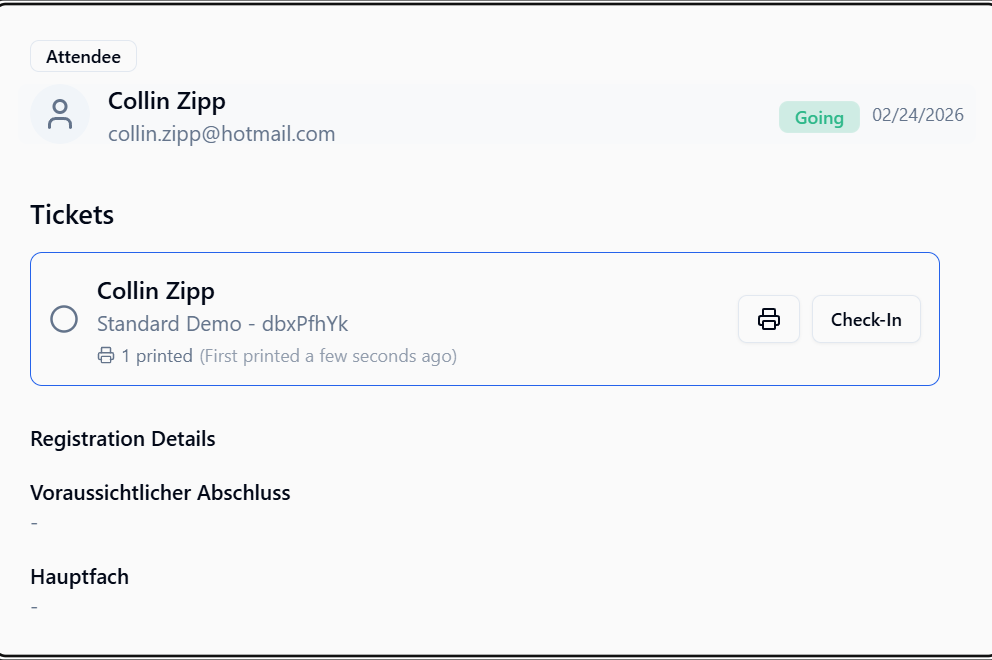
When opening a ticket in the CheckIn List, you can always reprint a badge for a ticket.
Tip: Always ensure your local computer running the PrintNode Client is turned on and connected to the internet. If you don’t see your printer in the list, refresh the Advanced Settings dialog.